
End-to-end Report Processing and Data Extraction Example
End-to-end Report Processing and Data Extraction Example
Introduction
The purpose of this document is to demonstrate an example of end-to-end processing and data extraction using the NLP API, the Python Database Client, and an NLP API Database.
Here’s the clinical problem: we have a large number of CT scan reports, and we want to find all the reports where intracranial hemorrhage (ICH) was present. Our input CT reports are from a number of different scan types, and are stored in a database. We want to create an NLP API database for our output storage, retrieve the original CT reports, process them, and store the results in the NLP API database, and then query the database to find our cases with ICH.
In this case, our input database (where our raw/source documents are stored) will be MariaDB/MySQL and our output/NLP API database will be PostgreSQL.
The following diagram summarizes the key steps from start to finish.
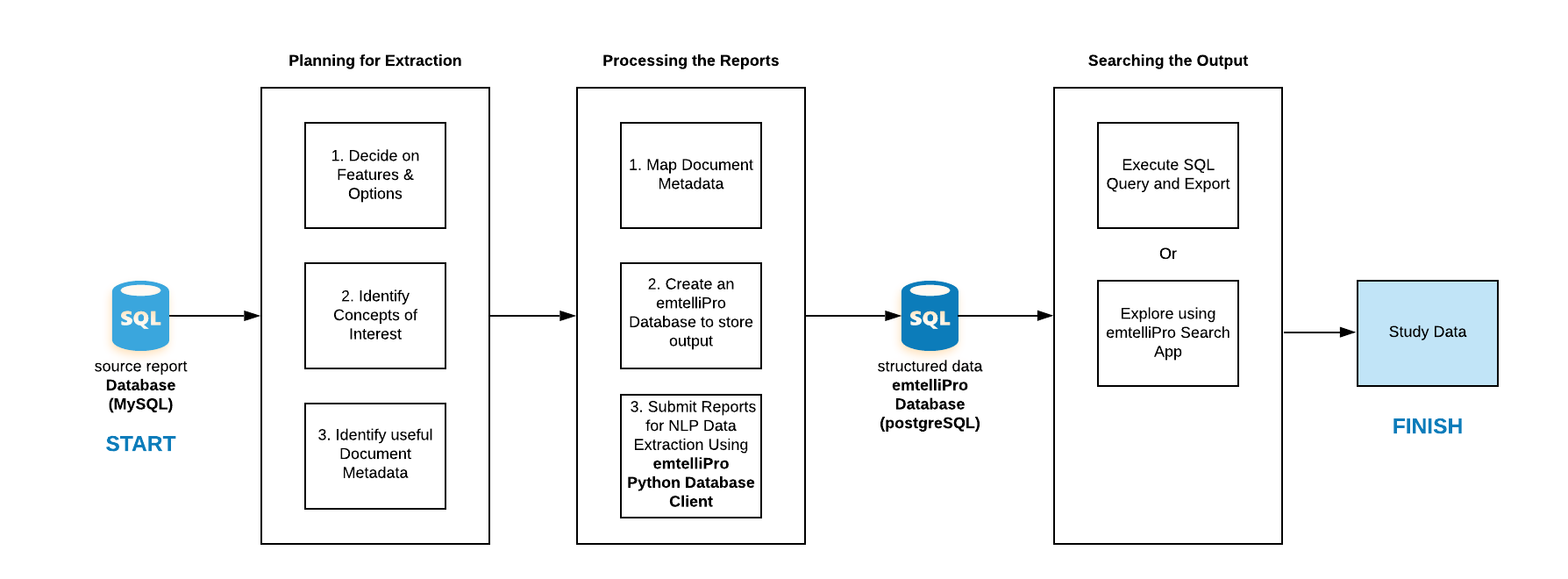
Planning for Extraction
Before we get started on the processing details and building a SQL query, we need to plan out what it is that we’re looking for. While it may sound somewhat counterintuitive to start with the last step before we get started, we need to know some information to use the appropriate processing features to make sure we get the answer we’re looking for. As well, we need to put some thought into how the physicians who created these documents may have described their findings, as we may need to search for multiple concepts to find as many positive cases as we can. Finally, because we have a mix of input report types from CT scans of different body parts, we should probably narrow down our search to just search the reports from CT scans of the head.
Let’s break it up into three questions that we need to answer:
- What processing features and options should we use?
- What concepts are we going to be looking for?
- What metadata (e.g. report descriptions) are we going to use as search criteria?
Deciding on Processing Features and Options
This is a guide to the processing features and options available when submitting a document for processing to the NLP API. The names of the options below are what you would use in the Python Client and Python Database Client.
category- In this case, because our reports are radiology reports, we’re going to use theRadiologycategory.subcategory- Because our reports are CT scan reports, we should use theCTsubcategory.features- An explanation of the features we’re going to use is included below:snomed-ontology- because we’re looking for general clinical findings related to ICH, a relatively common condition, SNOMED is the best ontology to use here.entity-polarity- because we want to find the cases where ICH is present, we need to useentity-polarityto detect if the term was negated by the author.entity-uncertainty- it may be helpful to know if the Radiologist thought that ICH might be present or not, so we’ll use this to detect if uncertainty in the diagnosis was present or absent.text- as we’re going to want relatively verbose output back from the engine to store in our database, we should generally always use this option.
As we’re not looking for follow-up recommendations, or qualifications on the size of the hemorrhage, or image links or measurements, we don’t need to ask the NLP API to produce any relations. The above options allow us to a) identify hemorrage mentions and map them to SNOMED concepts, b) identify if hemorrhage was present or absent, and c) identify if the radiologist was uncertain in making the diagnosis.
More information on the possible processing features and options is available at the API docs page
Identifying SNOMED Concepts for our Search
Our next step is to identify which concepts we should be searching for. For this, we need to have some experience with medical reports, and may need to consult a radiologist. We should also be familiar with an online SNOMED lookup tool like the SNOMED CT browser.
Unfortunately, humans aren’t necessarily consistent in how they describe clinical findings. While one radiologist might be highly specific and say, “There is a small amount of subarachnoid hemorrhage over the left frontal convexity”, another might write, “Small bleed over left frontal lobe”. Because of this, we’re going to want to search for multiple concepts related to intracranial hemorrhage. Using the SNOMED CT browser, and with some background knowledge of radiology reports, the concepts that we’re going to want to search for are:
- Intracranial hemorrhage (disorder) - 1386000
- Hemorrhage (morphologic abnormality) - 50960005
- Bleeding (finding) - 131148009
- Cerebral hemorrhage (disorder) - 274100004
- Subarachnoid intracranial hemorrhage (disorder) - 21454007
- Epidural intracranial hemorrhage (disorder) - 82999001
- Subpial intracranial hemorrhage (disorder) - 451035002
Identifying Metadata for Searching
Because we’re processing a mix of CT scans of different body parts, and because we have to search using relatively generic concepts like “bleeding”, we’re going to want to just search the CT reports from CT scans of the head. Otherwise it’s entirely possible that the term “bleeding” would come up in a trauma CT of the abdomen, and we’d essentially have a false positive in this case for our search results.
Because the NLP API database client and database allow us to store a report description field along with the structured data output from the NLP API, in the documentmetadata table, we can apply a filter to the description column in the database when we perform our query to narrow down the reports in which we’re searching.
We could also use another search criteria to search the TECHNIQUE section of the report for mentions of concepts like 303653007 - Computed tomography of head (procedure), but due to the huge variability that radiologists use in describing the scan performed, this may only result in a smaller pool of results returned than in using the report description metadata column as a search criteria.
Processing the Reports
Prerequisites
Set up the environment variables used in this guide for access to the NLP API server. You will need to set the following environment variables for the NLP API server and your access and secret keys. If you do not have access to the appropriate values for these variables please contact us.
Metadata Field Mapping
In order for us to be able to constrain our database query based on the date of a report, or to a particular subject, or by report description, we want to get as much metadata as we can into the documentmetadata table in the NLP API database.
Let’s take a look at this table in PostgreSQL to talk a bit about the columns:
Ideally, we’d like to populate all of the columns that we can from this table, so let’s take a look first at what these columns are intended to mean:
id- this is an automatically-incremented field - just to assign a unique ID to this row, and isn’t for end-user use.document_id- this is the unique identifier that the client has generated for this table to link it to theidfield in thedocumenttable, and isn’t for end-user use.source_document_id- this is a unique identifier that gives you the chance to link back to a source document identifier, like an accession number.original_category- if you or your institution wants to use your own categories for document types, this column allows you to do that.original_subcategory- again, if you or your institution wants to use your own subcategories for document types, this column allows you to do that.institution- you may be processing records from multiple institutions -e.g.hospital_Aandhospital_B- so you can use this if you want to distinguish the records from the two institutions.subject_id- this is the patient ID, or MRN, or whatever unique identifier you want to use for the patient from whose chart this document came from.description- intended to be a plain text description of the document, likeCT ABDOMEN WITH CONTRAST(e.g. DICOM group 0008, element 1030)hadm_id- intended to be used for a Hospital Admission IDchartdate- intended to be used for the document original date/timeauthor_name- intended to be used to store the report author’s namesubject_name- intended to store the subject’s namesubject_dob- intended to store the subject’s date of birthsubject_gender- intended to store the subject’s genderrequestor- intended to store the documents’ requestor
Now let’s take a look at our source database, so we can perform the mapping between the input table columns and the documentmetadata table in the NLP API database:
You’ll note that this table has some odd-looking field names! As these are radiology reports, these are DICOM group/element codes. PACS systems often store field attributes using this notation so as to be unambiguous. Here’s a decoded explanation of these fields:
g0008e0080- Institutiong0010e0020- Patient IDg0008e0060- Modalityg0008e1030- Study Descriptiong0008e0050- Accession numberg0008e0020- Study date
So let’s look at the mapping that we can create between our source document table and our documentmetadata table:
idreports- unused. This is just a unique identifier field for this database for internal use.g0008e0080- map todocumentmetadata.institution.g0010e0020- map todocumentmetadata.subject_id.g0008e0060- map todocumentmetadata.original_subcategory.g0008e1030- map todocumentmetadata.description.g0008e0050- map todocumentmetadata.source_document_id.g0008e0020- map todocumentmetadata.chartdate.report- the text of the report itself; we don’t need to map this but we’ll be retrieving it when we go to run the processing job.
You’ll note here that there are a few fields we didn’t use - hadm_id, author_name, subject_name, subject_dob, subject_gender, requestor, and original_category. For hadm_id, we’re not going to map anything to it. Radiology systems usually don’t contain information about unique identifiers for hospital admissions, so we likely don’t have any data on that or our other subject-related fields. Our main goal with this table is to be able to easily read produced scan descriptions, so requestor, author and subject information are not particularly relevant here. We’re going to use a constant value of Radiology for our original_category field, since we’re only looking at CT reports.
Now one problem we unfortunately frequently have to deal with in medical informatics is the translation between different date formats, and this instance is no different. If we look at the date format used by DICOM for our CT reports, it will be in the YYYYMMDD format, e.g. 20191231. If we try to store this into our chartdate field in PostgreSQL which has a data type of timestamp without time zone, we’ll likely get an error. Thankfully, pretty much every RDBMS has pretty robust date-handling features, and when we go to grab this field, we can use a MySQL function to convert it. Some examples of how we could do this would be:
Or:
So let’s take our mappings above, and create the SQL query that we’re going to use when we run the NLP API Python Database Client. Just remember that the two pieces of information that we must give the NLP API when we process a document are an id as a unique identifier and the document text as text. In this case we’re going to use the accession number (g0008e0050) as the the unique identifier for the engine to process the document with, and for handy searching later, we’re also going to select it for insertion into the source_document_id field.
If you want, you can add a WHERE ... clause or an ORDER BY or a LIMIT .. clause - the Python Database Client will execute your SQL command as-is against your database, so use whatever you need to get the records you want to process.
The next thing we need to create is the URL which our database client is going to use to connect to our MySQL RDBMS to get the reports from. The pieces of information we’re going to need are:
username- the username for our MySQL user that has access to the database containing the CT reports - here, we’ll useusernamepassword- the password for our MySQL user - here, we’ll usepasswordhostname- the hostname or IP address of the server hosting the MySQL database - here, we’ll use10.100.10.55port- the TCP port of the MySQL process on the server, usually 3306 unless your DB admin has set it to be something differentdatabase_name- the name of your database - here, we’ll usereports
The format of this URL - assuming you’re using the Python Database Client with pymysql, is:
So - now we’ve got the groundwork laid for our processing run, let’s build the NLP API database, and process our reports.
Creating an NLP API Database
So before we can do a processing run, we need to make sure that we actually have a place to store all of our output from the NLP API! As mentioned above, we will use PostgreSQL to store the output, so the first thing we need to do is create a database in PostgreSQL. There are a bunch of ways we can do this; you can use a GUI like pgadmin, or you can go into the PostgreSQL command interpreter and use SQL to create the database, e.g.:
Here, we’ve called our database ct_report_output, but you can call it whatever you want. Once we have our database created, our next step is to create the tables in the database to store the data itself. To do this, we’ll use the Python Database Client. In order to do this, we’ll need to first determine:
username- what username we’ll be using to connect to the database -here, we’ll useusernamepassword- what password we’ll be using for this username to connect to the database - here, we’ll usepasswordhostname- the hostname or IP address of the server that is hosting PostgreSQL - here, we’ll use10.10.100.10port- the TCP port that PostgreSQL is listening on; for PostgreSQL this is usually 5432, but your DB admin may have set something custom up so you may need to check with themdatabase_name- we called our databasect_report_outputabove, but use whatever you used when you created the DB
So now, at our activated shell prompt, we’re going to run the Python Database Client to create the tables:
If this is successful, it should just return Tables created. If you like, you can then log into your RDBMS and inspect the schema but otherwise we’re ready go move onto processing our reports.
Processing the Reports
So this is where we put a bunch of the above pieces together to create the run-time options for the database client. First, here’s the command that we’re going to run, and the explanations for each option will come after:
Here’s an explanation of all the options we use above:
process- telling the Python Database Client that we want to process the reports--database- this is the database into which we’re going to be storing our output; we’ve used the URL that we constructed above--server- the address of the API server that you have been assigned by Emtelligent - ensure you are using the correct address assigned to your institution--access-key- this should be the NLP API access key assigned to you by Emtelligent--secret-key- this should be the NLP API secret key assigned to you by Emtelligent--sql-query- this is the SQL query and URL that we built for the MySQL RDBMS that we had our reports in, above--store-reports- this will store our original reports into ourct_report_outputdatabase, to allow us to have all the data in one place--category- as discussed above, we’re going to useRadiologyhere as these are Radiology reports--subcategory- as discussed above, as these are CT scan reports, we’re going to useCTas our subcategory--features- these are our processing options that will give us the features we need and help limit our output database size--job-id- this is just a unique identifier for this run of the client, to enable storage of multiple batches in the same database, and track which run was which
Once the processing run is complete, the client will store the output in the database and we’re ready to start searching for the data that we want.
Searching the Output
Once the data has been stored in our database, it’s ready to search. In this section we show how you can write a custom SQL query, directly access the database, and dump the data out as a .csv file for offline analysis
SQL Query and Export
Before we can write a SQL query, we need to figure out exactly what fields we want to get out of the database. While it could be something as simple as just a list of report IDs that have the data we want, we’ll go for a bit more verbose output here, with a number of fields to help us sort/search through the data once we’ve exported it. Here’s a list of the fields we’ll want to export, along with the table name, in standard SQL tablename.fieldname notation:
- Accession number -
documentmetadata.source_document_id - Identified term -
foundentityspan.text(we’ll call thisfound_textto avoid ambiguity with the report field itself) - Patient ID -
documentmetadata.subject_id - Report section -
foundentity.section_name - Sentence containing the found term - here we’ll use a function to extract the sentence from the whole report
- SNOMED Concept ID -
foundentityconcept.concept_id - SNOMED fully specified name -
concept.description - Study description -
documentmetadata.description - Uncertainty status -
foundentity.uncertainty
And based on the criteria that we want to use for our search, we are going to use the following search constraints:
e.type_='found'- NLP API has two broad entity types -foundandassumed; assumed entities are a special case for some emelliPro relations such asexperiencer-relations, and we just want found entities for what the engine actuallyfoundin the textdm.description ILIKE '%CT%HEAD%'- we’re restricting our search to reports that have a description with the wordHEADin them, to limit our search just to CT HEAD reportsfe.section_name IN ('FINDINGS','IMPRESSION')- here, we’re restricting our search to mentions of our search concept just to theFINDINGSorIMPRESSIONsection of the reportfec.concept_ontology = 'snomed'- we just want concepts from the SNOMED ontologyfec.concept_id IN ('1386000','50960005','131148009','274100004','21454007','82999001','451035002')- these are the concepts that we want to search for
fe.polarity = 'asserted'- we are looking for reports where this concept is ‘ruled in’, or wasassertedby the dictating radiologist
By virtue of necessity, and to follow good database design, the NLP API database schema is highly normalized. This means that a number of joins are required to get the data out of database in the format that we want.
So - here is the query that we’re going to want to use:
If we run this query, we should see a table that looks something like:
And if we wanted to export this to a .csv file directly from our query, we could encapsulate our query in a COPY (<query>) TO ... so that it would look something like this:
Above I’ve used this on linux, so I’m exporting it to a file in /tmp - you may need to use a different format/directory if you’re running this on another OS.
And that’s pretty much it - we should get the results in a .csv file and we can then import it somewhere else to do something with it.
Summary
This document has described the considerations required in performing a processing run to identify reports containing a list of clinical concepts, using the NLP API Python Database Client, and either a direct SQL query, or the NLP API Search App. It has shown how to retrieve reports from one RDBMS (MariaDB in this case), process these reports, and export the output from the NLP API into another RDBMS (PostgreSQL). Hopefully it will get you on your way to processing data with the NLP API and finding the information that will help you help your patients.